

Suspension,
Appliance Service Data Entry System in Excel
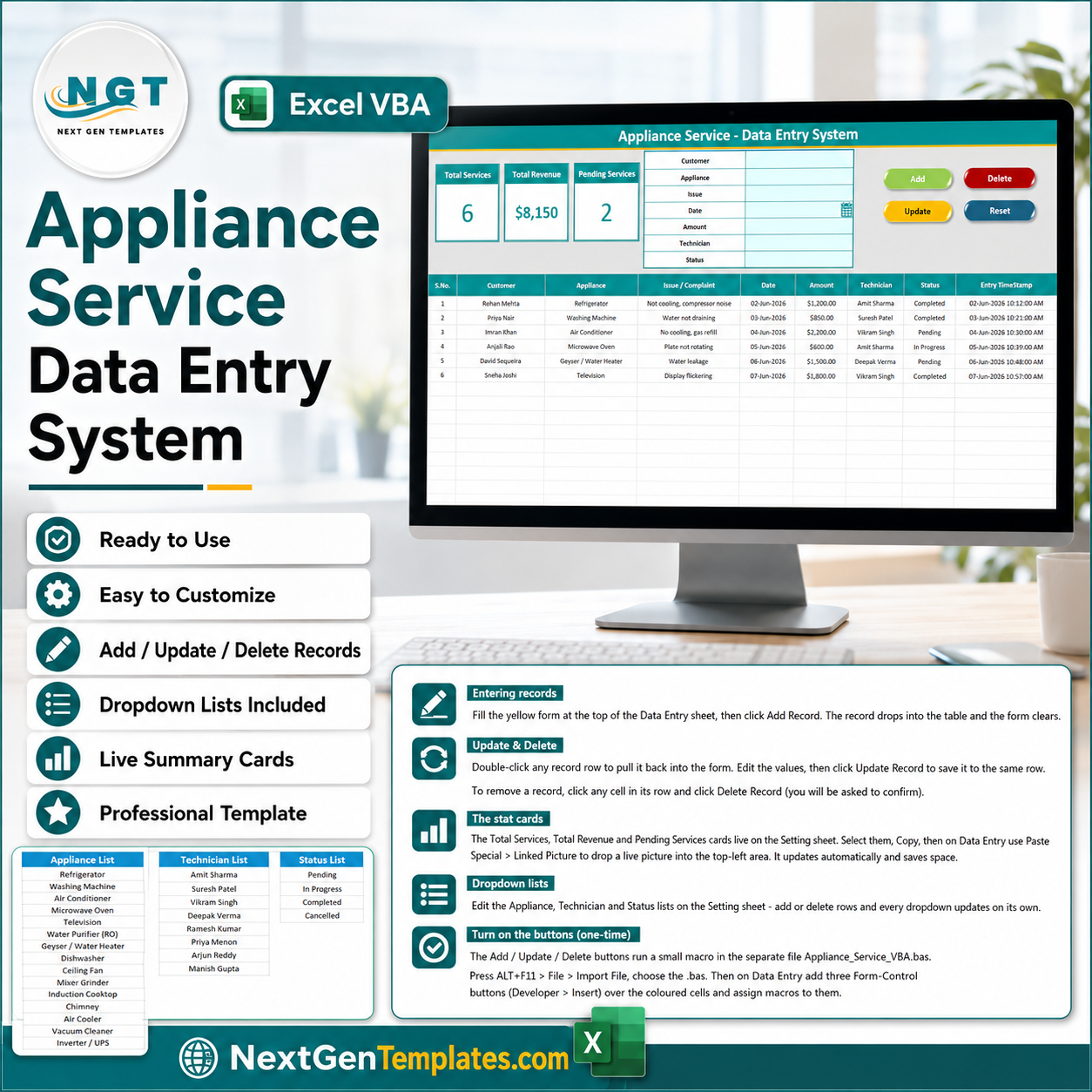
The Appliance Service Data Entry System in Excel captures every repair job through a 7-field form (Customer, Appliance, Issue, Date, Amount, Technician, Status) and rolls it into 3 live KPI cards – Total Services, Total Revenue, and Pending Services – that update the moment you click Add. Setup takes under 5 minutes: open the file, enable macros, and start logging. �� Join 8,400 teams in 40 countries using NextGenTemplates to replace paid SaaS tools with one-time-purchase Excel, Google Sheets, Power BI, and HTML templates. ✅ Instant download · One-time payment · No subscription · No per-user fees · Lifetime access �� Key Features of the Appliance Service Data Entry System in Excel �� One-screen entry form – A 7-field form sits at the top of the Data Entry sheet so a front-desk operator can log a refrigerator, washing machine, or AC repair without scrolling. Appliance, Technician, and Status are dropdowns, so spelling stays consistent across thousands of records. �� Three live KPI cards – Total Services counts every job, Total Revenue sums the Amount column, and Pending Services counts rows marked Pending. All three recalculate automatically and also sit on the Setting sheet so you can paste them as a linked picture anywhere. ��️ Four one-click buttons – Add, Update, Delete, and Reset run on a small VBA module. Add appends a timestamped record, Update overwrites the selected row, Delete removes a job after a confirmation prompt, and Reset clears the form. �� Editable dropdown lists – The Setting sheet holds the Appliance, Technician, and Status lists. Add or remove a row and every dropdown in the form and table updates on its own, because the lists are wired as named ranges. �� Auto S.No and timestamp – Each saved record gets an automatic serial number and an Entry TimeStamp, so you always know the order and exact time a job was booked. �� What’s Inside the Appliance Service Data Entry System Data Entry Dashboard in Excel The main sheet shows the dark heading bar, the 3 KPI cards, the entry form, the Add/Update/Delete/Reset buttons, and the records table with auto S.No, Date, Amount in currency, Technician, Status, and Entry TimeStamp. Setting Sheet – Dropdowns and KPI Source This sheet stores the Appliance, Technician, and Status lists that feed every dropdown, plus a copy of the Total Services, Total Revenue, and Pending Services cards you can paste as a linked picture. Records Table and Guide Every saved job lands in a clean hair-grid table with consistent formatting, while the Instructions and Get More Templates sheets explain setup and link to related tools. �� Appliance Service Data Entry System vs. Google Sheets vs. Paid Field-Service SaaS – Where This Fits Feature Appliance Service Data Entry System Google Sheets version Jobber / Housecall Pro / ServiceTitan Cost $5.99 one-time Free – manual build $49-300 / user / month Platform Microsoft Excel (offline) Google Sheets (online) Cloud SaaS Setup time Under 5 minutes ✅ 30-60 minutes Days onboarding One-click Add / Update / Delete ✅ Built-in VBA buttons Needs Apps Script ✅ Works offline ✅ Yes ❌ No ❌ No Per-user fees ✅ None None ❌ Charged per technician Own your data file ✅ Yes (.xlsm) Google account ❌ Vendor-hosted Year-1 cost at 5 users $5.99 $0 $3,000-18,000 For repair shops that want to log jobs and watch revenue without paying per-technician SaaS fees, the Appliance Service Data Entry System sits in the sweet spot. �� Who This Template Is For – and Who It’s Not For ✅ This template is built for: Appliance repair shops and service centers logging daily jobs and collections Independent technicians who want a simple offline record of customers, repairs, and pending work Small electronics, AC, and white-goods businesses that need fast entry plus live revenue and pending counts ❌ This template is NOT for: Large field-service operations needing GPS dispatch, scheduling, and mobile apps Teams that require real-time multi-user cloud editing across many locations Mac users who cannot enable Excel VBA macros ⚙️ How to Use the Appliance Service Data Entry System in Excel Open the .xlsm file in Microsoft Excel and enable macros when prompted. On the Setting sheet, edit the Appliance, Technician, and Status lists to match your shop. Fill the form at the top of the Data Entry sheet and click Add to save a timestamped record. Double-click any record to load it into the form, edit it, and click Update; use Delete to remove a job. Read the Total Services, Total Revenue, and Pending Services cards to track your day at a glance. �� Real-World Use Cases Imran runs a 3-technician appliance repair shop. He logs every refrigerator and washing-machine job through the form, assigns it to a technician from the dropdown, and checks the Pending Services card each evening to see what is still open – without paying $80 per technician per month for field-service software. Anita manages a white-goods service desk. She uses the Total Revenue card to reconcile daily collections and exports the records table to share a quick weekly summary with the owner. ❓ Frequently Asked Questions What fields does the Appliance Service Data Entry System in Excel capture? The Appliance Service Data Entry System captures 7 fields per job: Customer, Appliance, Issue, Date, Amount, Technician, and Status. Appliance, Technician, and Status are dropdowns managed on the Setting sheet for consistent entries. Which KPIs does it calculate automatically? It calculates 3 live KPIs – Total Services, Total Revenue, and Pending Services – which update instantly each time you add, update, or delete a record. The same cards also appear on the Setting sheet. Do I need to enable macros? Yes. The Add, Update, Delete, and Reset buttons run on a small VBA module, so enable macros when Excel prompts you. Without macros you can still type directly into the table, but the buttons will not run. How long does setup take? Setup takes under 5 minutes. Open the file, enable macros, edit the dropdown lists on the Setting sheet, and start logging jobs from the form on the Data Entry sheet. How does this compare to paid field-service software? Paid tools like Jobber or Housecall Pro charge $49-300 per user each month. The Appliance Service Data Entry System is a one-time $5.99 Excel file you own and run offline – ideal for a single shop that mainly needs job logging and revenue tracking. Can I customize the dropdown lists? Yes. Open the Setting sheet and edit the Appliance, Technician, or Status lists. Because the lists are named ranges, every dropdown in the form and table updates automatically. �� About the Author Built by PK – Microsoft Certified Professional with 15 years of Excel, Google Sheets, and Power BI experience. Founder of NextGenTemplates, reaching 300K subscribers across YouTube channels (@PK-AnExcelExpert, @NextGenTemplates, @NeoTechNavigators). Every template is hand-built and tested before release. �� Explore Related Templates Need a full multi-module tool? The VBA Management Systems Mega Pack bundles 5 premium Excel systems. For workflow tracking, see the Production Tracking and Dispatch Management System. Browse more Excel Dashboard Templates and Inventory Management templates to round out your toolkit. �� Click here to read the Detailed Blog Post �� Visit our YouTube channel for step-by-step video tutorials �� YouTube.com/@NextGenTemplates �� Last updated: June 2026 Watch the step-by-step video tutorial:
$ 5.39